Capture a complete webpage as an image, or convert a live URL into a print-ready PDF straight from your browser. Both tools run on the ScreenshotAPI rendering engine, so what you see in the preview is exactly what the API returns.
Paste a URL and get the whole scrollable page as a single PNG, JPG, or WebP. Lazy-loaded images are triggered, sticky headers are handled, and nothing is cut off at the fold.
Convert a live URL into a clean, multi-page PDF with real, selectable text. Choose A4, Letter, Legal, A3, or Tabloid, switch to landscape, and download in seconds.
These are not thin wrappers around a browser print dialog. Both tools use the same renderer, the same parameters, and the same output pipeline as the paid ScreenshotAPI endpoints.
Real Chromium rendering
Every capture runs in a real headless Chromium instance with full JavaScript execution, web fonts, and CSS. So what you download matches what a visitor sees.
Nothing gets cut off
Both tools scroll the full document height before capturing, triggering lazy-loaded images and off-screen sections so the bottom of the page is never clipped.
full_page=true
Ads and cookie banners removed
Consent dialogs and ad slots are stripped before the render, so your screenshot or PDF is clean without any manual editing.
block_ads=true
Consistent, repeatable output
The same URL and the same settings produce the same file every time unlike browser print dialogs, which vary by OS, browser, and print preset.
Copy-paste code snippets
Each tool shows the exact cURL, Node.js, Python, and PHP request that reproduces your settings, so moving from demo to production is a copy and a paste.
Ready to scale
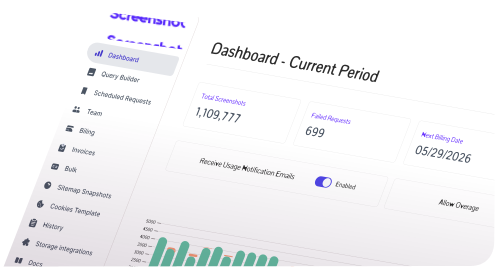
When one page is not enough, the same parameters work with bulk captures, scheduled screenshots, and storage integrations on the paid API.
Capture Methods
How to take a full page screenshot: every method, compared
There are four common ways to screenshot an entire webpage, a DevTools command, a browser extension, your operating system's built-in shortcut, and the print dialog. All four work on a simple page and all four fall apart on a modern one. Here is what each method actually captures when you ask it for a long, scrolling screenshot of a real site.
Comparison of full page screenshot methods: Chrome DevTools, a Chrome extension, built-in Mac, Windows and iPhone shortcuts, the browser print dialog, and the free ScreenshotAPI tools.
Method
Captures below the fold
Triggers lazy-loaded images
Strips ads & cookie banners
Same file every run
Scriptable in bulk
Chrome DevTools capture — Open DevTools, run the command by hand on every page
Usually
No
No
Varies
No
Full page screenshot Chrome extension — Install an add-on and grant it read access to every site you visit
Yes
Sometimes
No
Mostly
No
Built-in shortcut on Mac, Windows or iPhone — Keyboard shortcut, captures whatever is on the screen right now
Viewport only
No
No
Screen dependent
No
Print dialog, save as PDF — Available everywhere, but every browser and OS prints differently
Yes, paginated
Sometimes
No
Preset dependent
No
ScreenshotAPI free tools — Paste a URL in the browser, nothing to install, no account
Full document height
Yes, scrolls first
Yes, built in
Yes, deterministic
Yes, via the API
Why manual full page captures break
Sticky headers repeat down the image
Extensions that stitch a long screenshot together from separate scroll steps capture the fixed navbar in every one of them, so the same header shows up five times in a single capture.
Lazy-loaded images come out blank
Anything below the fold only loads once it is scrolled into view. A one-shot capture takes the picture before that happens and you get grey placeholders where the images should be.
Print stylesheets rewrite the layout
Saving a webpage as a PDF from the print dialog applies the site's print CSS, which often drops backgrounds, collapses columns, and moves content you needed to keep.
The full page screenshot tool on this page scrolls the whole document first, so lazy images load and the header stays where it belongs. If you need the capture as motion instead of a still image, use a scrolling screenshot, and to turn a list of links into images programmatically, see URL to screenshot.
URL to PDF
How to save a webpage as a PDF that still looks like the webpage
Most people convert a webpage to PDF the same way: open the print dialog, choose Save as PDF, and hope. It is fine for a receipt. For anything you have to send to a client, attach to a ticket, or keep as a record, it usually returns a document with the layout collapsed, a cookie banner across the first page, and half the images missing.
The URL to PDF generator renders the live page in headless Chromium first, then prints it with the options you picked.
The paper size you chose — A4, A3, Letter, Legal, or Tabloid, in portrait or landscape, set explicitly rather than inherited from whatever printer preset your machine happens to have.
No ads, no cookie wall — Consent dialogs and ad slots are removed before the render, so page one is the content and not a full-page newsletter overlay.
The same file on any machine — One URL and one set of options produce a byte-for-byte comparable document whether it runs on your laptop or on a server at 3am.
annual-report.pdfA4Portrait
Page 2
Selectable textLinks preservedAds removed
When one PDF is not enough
The free tool handles a single link. Once you need a whole list of them, or the same page captured on a schedule, the same parameters move to the API without any rework.
Hundreds of URLs in one job
Feed a list of links and download every webpage as a PDF in a single bulk run instead of pasting them one at a time.
How to screenshot an entire webpage in three steps
No extension permissions, no keyboard shortcut that only grabs what fits on the screen. Taking a screenshot of a full webpage, top to bottom, comes down to three steps in the browser.
01
Paste the URL you want to capture
No browser tab, no extension install
Drop in any public web address. The tool loads it inside a real headless Chromium instance, the same engine a visitor's browser would use, so what renders is what you get.
02
Choose the output and let it scroll
full_page=true, block_ads=true
Pick PNG, JPG, or WebP and a viewport width, then the renderer scrolls the full document height on its own so lazy-loaded images and content below the fold make it into the shot.
03
Download it, or copy the request instead
Instant file, or a copy-paste snippet
The finished capture downloads straight from the browser. Underneath every run, the tool also shows the matching cURL, Node.js, Python, and PHP request, ready to drop into a script.
Need the same page as a document instead of an image? The URL to PDF generator walks through the same three steps, paste the address, choose paper size instead of image format, then download or copy the request, so saving a page as PDF works the same way as capturing it as an image.
Frequently Asked Questions
Everything you might want to know about the free ScreenshotAPI tools, how they differ from the API, and what happens to your data.