How to Build a Screenshot Export Feature in a SaaS App (Node.js + Email)

Written By Hanzala Saleem
Updated At June 17, 2026 | 8 min read
Written By Hanzala Saleem
Updated At June 17, 2026 | 8 min read
While building a SaaS dashboard for a client, I needed to add a feature that most analytics and reporting tools take for granted: a button that captures the current page as a screenshot and emails it to the user either as a JPEG image or a PDF attachment. It sounds simple. It isn't.
This guide walks through exactly how I built it using Node.js, ScreenshotAPI, and Nodemailer, covering the full stack from the frontend trigger button to the backend route, screenshot capture, and email delivery.
Quick Answer: To add a screenshot export feature to a SaaS app, you capture the rendered frontend URL using a headless screenshot API, stream the resulting image, and send it as an email attachment via Nodemailer or a transactional email service. A managed screenshot API handles browser rendering, lazy loading, and caching so you don't need to run Puppeteer or Playwright yourself.
Before diving into the build, let's address the obvious question. Puppeteer and Playwright are excellent headless browser libraries, but running them in production for a SaaS screenshot export feature comes with real costs:
| Factor | Self-hosted Puppeteer | Managed Screenshot API |
|---|---|---|
| Setup time | 2–4 hours (browser install, containerization) | 5 minutes (API key + HTTP call) |
| Memory usage | 200–500MB per browser instance | Zero (runs on their infra) |
| Scaling | Manual queue and concurrency management | Handled automatically |
| Chrome updates | You manage version compatibility | Provider handles it |
| Cold start latency | 1–3 seconds per browser launch | Sub-second (warm pool) |
| Full-page & lazy-load support | Requires custom scripting | Built-in parameters |
| Cost at 10K screenshots/month | ~$15–40/month VPS + engineering time | ~$10–30/month flat |
For a SaaS screenshot export feature where users click a button and expect a screenshot within a few seconds, a managed screenshot API wins on reliability and time-to-ship. Below 25,000 screenshots/month, the engineering overhead of self-hosting Puppeteer almost never makes financial sense.
That said, if you need to log in, fill forms, or run multi-step browser automation before taking the screenshot, Puppeteer/Playwright give you control that a REST API cannot replicate.
A SaaS application with an Export Screenshot button that:
The demo frontend displays a Pokémon card collection (because SaaS dashboards full of metric cards are boring, and the rendering logic is identical).
We are going to need a backend which I have designed using Node.js and Express.js to take the screenshot and mail it along with the frontend.
The Backend and Frontend can be found in the repos attached.
Honestly, the UI of a SasS application can be quite boring as it just displays a lot of boring data, consisting of metric cards, goal scorecards, charts etc. so to make this blog a little interesting, our UI will display a collection of Pokemon cards, because who doesn't like Pokemon, eh?
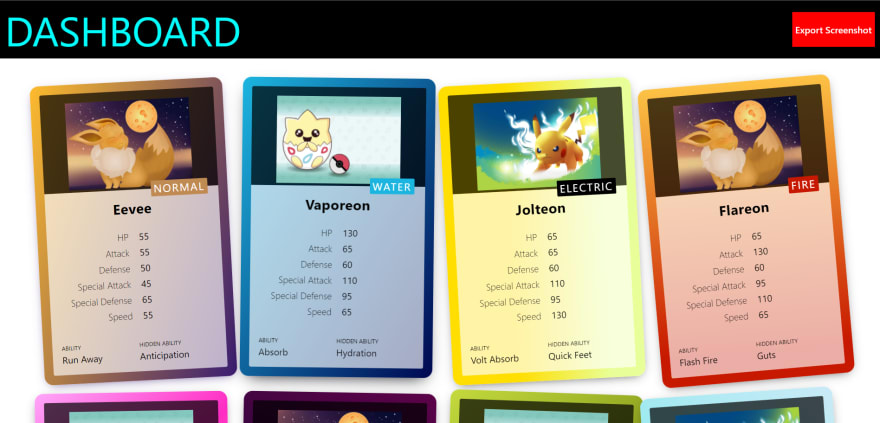
Since the UI is there, let's build the backend. It is gonna be quite simple. It'll have a route which would be called on when you click the "Export Screenshot" button from the front end.
const express = require("express")
let cors = require("cors")

const { sendEmail } = require('./helpers/helper')

const app = express()
app.use(cors())
app.use(express.json())

app.get("/", (req, res) => {
 res.send('backend home route')
}})

app.post("/send-screenshot", async (req, res) => {
 const { receiversEmail } = req.body

 try {
   await sendEmail(receiversEmail)
   res.status(200).send("Email sent successfully")
 } catch (err) {
   res.status(400).send("Error in sending the email with screenshot")
 }
})

app.listen(4000, () => {
 console.info("Backend is running on port 4000")
})With the frontend and backend in place, let's use the Screenshot API's query builder to design a query for the screenshot.
Here, I have designed a query in order to get a high resolution, full page screenshot of the current page.
I am using the following options:
Moreover, if you want to take screenshot of any public website, you'll want to use the following two features: "Block ads" and "no Cookie banners."
Finally, the query would look something like this
https://shot.screenshotapi.net/v3/screenshot?token=<YOUR_API_TOKEN>&url=<FORNTEND_URL>&full_page=true&fresh=true&output=image&
  file_type=jpeg&lazy_load=true&retina=true&wait_for_event=networkidle
PS. For the frontend URL ngrok can be used.
We are gonna use nodemailer for sending the screenshot. The screenshot.api will send back the JSON response which would contain the screenshot key with the screenshot URL.
Now, for emailing the image we need to first fetch the image, write it to the disk using the fs module, and then send it using nodemailer.
Attaching the code to the below:
const nodemailer = require("nodemailer")
const axios = require("axios")
const fs = require("fs")

const { SCREENSHOT_API_TOKEN } = require('./credentials')
const path = require("path")

const takeScreenshot = async () => {
 try {
   var query = "https://shot.screenshotapi.net/screenshot"
   let url = "<FRONTEND_URL>"
   query += `?token=${SCREENSHOT_API_TOKEN}&url=${url}&full_page=true&fresh=true&output=
image&file_type=jpeg&lazy_load=true&retina=true&
wait_for_event=networkidle`
   const response = await axios.get(query)

   console.info(JSON.stringify(response.data))

   const imageStream = await axios.get(screenshotURL, {
     responseType: "stream",
   })
   return imageStream
 } catch (err) {
   console.error("
Error while taking the screenshot", err)
   throw err
 }
}

const sendEmail = async (receiversEmail) => {
 try {
   let mailerConfig = {
     host: "smtp.gmail.com",
     port: 587,
     secure: false, // true for 465, false for other ports
     auth: {
       user: "<GMAIL_ID>", // user
       pass: "<APP_PASSWORD>", // password
     },
   }

   let transporter = nodemailer.createTransport(mailerConfig)

   const imageStream = await takeScreenshot()

   const imagePath = path.join(__dirname, "..", "output", "screenshot.png")
   imageStream.data
     .pipe(fs.createWriteStream(imagePath))
     .on("finish", () => {
       // send mail with defined transport object
       let info = await transporter.sendMail({
         from: "<SENDER'S EMAIL ADDRESS>", // sender address
         to: `${receiversEmail}`, // list of receivers
         subject: "Screenshot requested", // Subject line,
         attachment: [
           {
             filename: imagePath,
             content: imageBuffer,
             encoding: "base64",
           },
         ],
         text: "Hello! find the screenshot that you requested attached", // plain text body
         html: "<b>Hello! find the screenshot that you requested attached</b>", // html body
       })
     })
     .on("error", (err) => {
       console.error("Stream closed with following error: ", err)
     })
   return true
 } catch (err) {
   console.error("
Error in sending the email", err)
   throw err
 }
}

module.exports = {
 sendEmail,
}Need to send a PDF report instead of an image? Change two parameters in the API call:
file_type: 'pdf',    // instead of 'jpeg'
output: 'image',     // PDF is returned as a binary stream
And update the Nodemailer attachment:
attachments: [
  {
    filename: 'dashboard-report.pdf',
    path: imagePath,
    contentType: 'application/pdf',
  },
],
PDF output is ideal for multi-page reports, printed documents, or situations where the recipient needs to annotate or archive the export.
Instead of waiting for a user to click "Export Screenshot," you can schedule automatic screenshot emails using node-cron:
npm install node-cron
// scheduler.js
const cron = require('node-cron');
const { sendEmail } = require('./helpers/mailer');

const REPORT_RECIPIENTS = ['manager@example.com', 'team@example.com'];

// Send a screenshot report every Monday at 8am
cron.schedule('0 8 * * 1', async () => {
  console.log('Running weekly screenshot report...');
  for (const email of REPORT_RECIPIENTS) {
    await sendEmail(email);
  }
});
This is the foundation of a dashboard reporting automation system, the kind used by analytics platforms, SaaS admin panels, and business intelligence tools to deliver automated weekly or daily summaries.
| Problem | Cause | Solution |
|---|---|---|
| Screenshot shows loading spinner | Page not fully rendered | Use wait_for_event=networkidle instead of load |
| Charts appear empty | Chart library renders after data fetch | Add lazy_load=true and increase API timeout |
| Screenshot shows login page | URL is behind authentication | Screenshot only your own app's URL from your backend; don't expose auth pages to the API |
| Email attachment is corrupt | Stream closed before write completed | Use the Promise-based stream write pattern shown above |
| Gmail authentication fails | Using main password instead of App Password | Generate a Gmail App Password at myaccount.google.com |
screenshotURL is not defined |
Bug: response.data.screenshot not extracted | Use const screenshotUrl = response.data.screenshot |
For a SaaS application's "Export Screenshot" feature that fires when a user clicks a button, a managed screenshot API is almost always the right choice. The reliability, zero infrastructure maintenance, and built-in options for full-page, retina, and networkidle rendering save days of engineering time.
Install node-cron in your Node.js project and define a cron expression, for example, '0 8 * * 1' runs every Monday at 8 am. Inside the cron callback, call your screenshot capture function using ScreenshotAPI or Puppeteer, then pass the resulting image to Nodemailer as an email attachment. This is the same pattern analytics and SaaS reporting tools use to deliver automated weekly dashboard summaries to stakeholders without requiring them to log in.
If you pass a protected dashboard URL directly to an external screenshot API, it will capture the login page instead of the actual dashboard because the API has no authenticated session. The simplest fix is to use ScreenshotAPI's cookie-injection feature. Alternatively, use self-hosted Puppeteer to script the full login flow before capturing.
The load event fires once the DOM and synchronous resources like scripts and CSS are ready, but most SaaS dashboards fetch their actual chart data via API calls that happen after load , so screenshots taken at this point will show empty charts. networkidle waits until there are no pending network requests for at least 500ms, ensuring all async data is fully rendered before the screenshot is captured.


